 Together We Learn
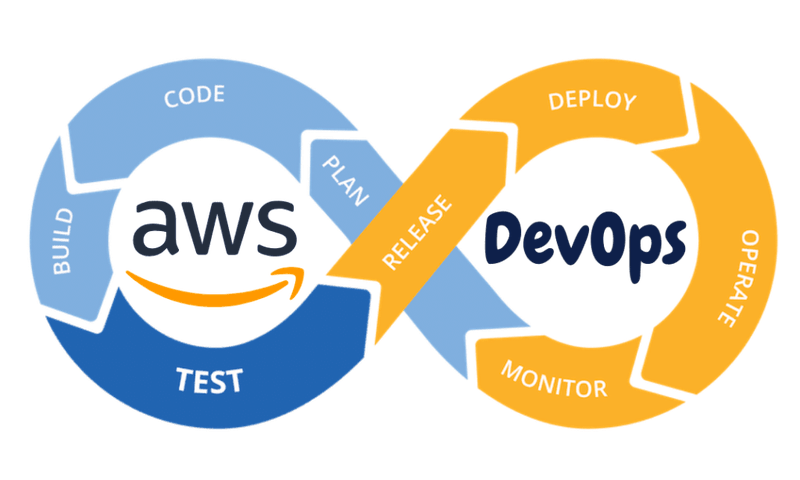
Here's a simple blog that focuses only on deploying a basic HTML page to an AWS virtual machine (EC2) and stopping the server after testing.
Introduction
Amazon Web Services (AWS) makes it easy to host a static HTML website using an EC2 virtual machine. This guide walks through the entire process—from launching a virtual machine to deploying a simple HTML page and stopping the server after testing to save costs.
Prerequisites
Before you begin, ensure you have:
- An AWS account
- A simple HTML file (for example, index.html)
Step 1: Log in to AWS
- Sign in to the AWS Management Console.
- Search for EC2 in the search bar.
- Open the EC2 Dashboard.
Step 2: Launch an EC2 Instance
- Click Launch Instance.
- Enter an instance name, such as html-web-server.
- Choose Amazon Linux 2023 as the operating system.
- Select the t2.micro instance type (Free Tier eligible).
- Create a new key pair or use an existing one.
- Download the .pem key file and store it safely.
- Allow the following inbound security group rules:
- SSH (Port 22) – Your IP address
- HTTP (Port 80) – Anywhere (0.0.0.0/0)
- Click Launch Instance.
Step 3: Connect to the EC2 Instance
After the instance status changes to Running:
Replace <Public-IP> with your EC2 instance's public IP address.
Step 4: Install Apache Web Server
Update the server:
Install Apache:
Start the Apache service:
Enable Apache to start automatically after reboot:
Check the service status:
Step 5: Create a Simple HTML Page
Navigate to the Apache web directory:
Create an HTML file:
Add the following content:
Save and exit the editor.
Step 6: Test the Website
Open a web browser and visit:
You should see:
Step 7: Verify the Web Server
If the page does not load:
- Confirm the EC2 instance is running.
- Verify that Port 80 is allowed in the security group.
- Check that Apache is running:
Restart Apache if necessary:
Step 8: Stop the EC2 Instance After Testing
To avoid unnecessary charges:
- Return to the EC2 Dashboard.
- Select your EC2 instance.
- Click Instance State.
- Choose Stop Instance.
- Confirm the action.
Stopping the instance pauses the virtual machine while preserving its data on the attached storage volume.
Step 9: Terminate the Instance (Optional)
If you no longer need the server:
- Select the EC2 instance.
- Click Instance State.
- Choose Terminate Instance.
- Confirm the action.
Note: Terminating an instance permanently deletes the virtual machine. Make sure you have backed up any important files before terminating it.
Conclusion
Deploying a simple HTML website on AWS EC2 requires only a few steps: launch an EC2 instance, install Apache, upload your HTML page, and access it using the instance's public IP address. Once testing is complete, stop or terminate the instance to reduce cloud costs. This simple deployment is an excellent starting point for learning AWS hosting before moving on to dynamic web applications and production environments.
If you want an even simpler version (5–10 minutes) using only the AWS Console and a single copy-paste command, I can provide that as well.